TradeTrail™ · Field Service Management

Your day starts on the dashboard. Everything else is a click away.

For day porter, janitorial, general contractors, landscaping, plumbing, and the trades. The office and TradeTrail™ Field stay on the same jobs.
[email protected]

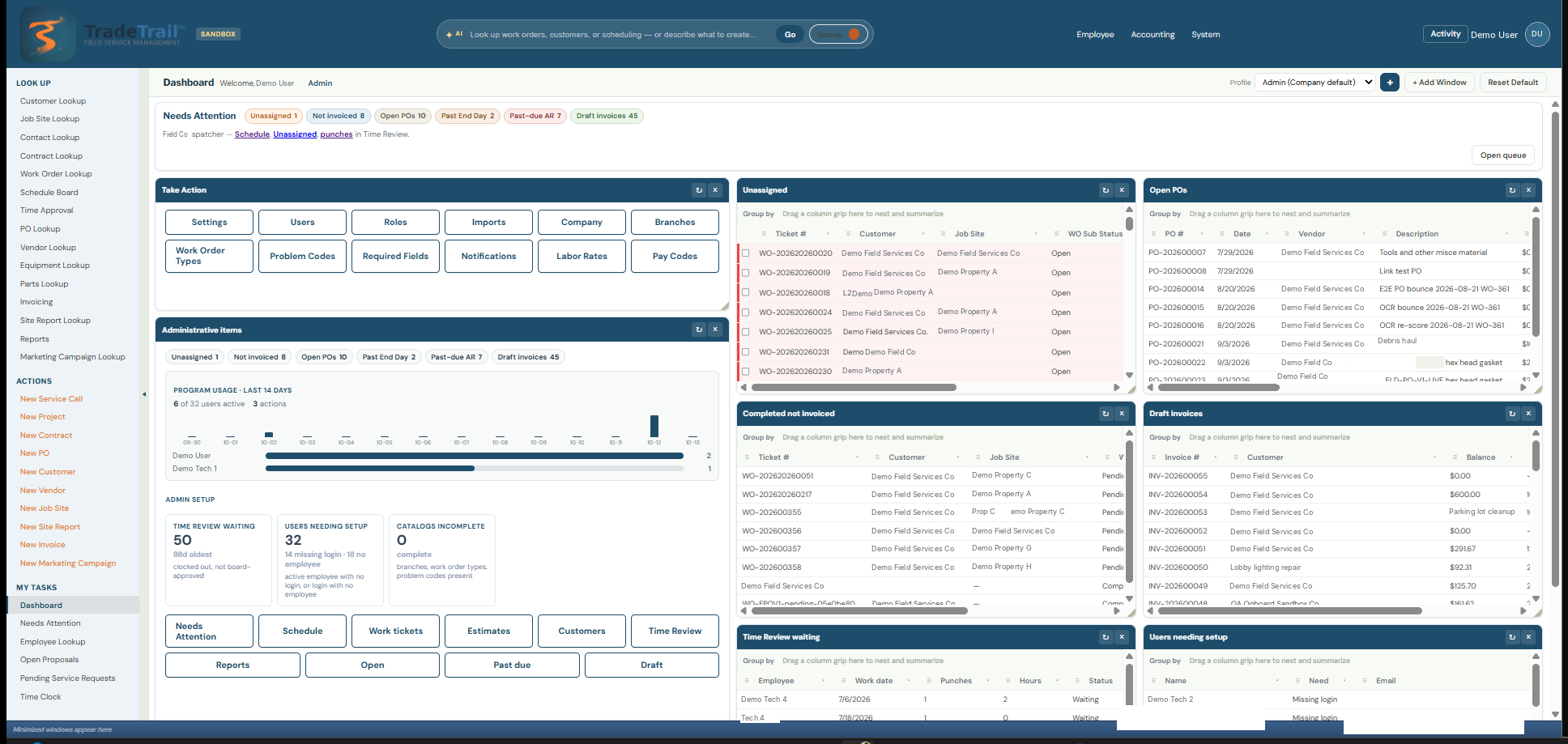
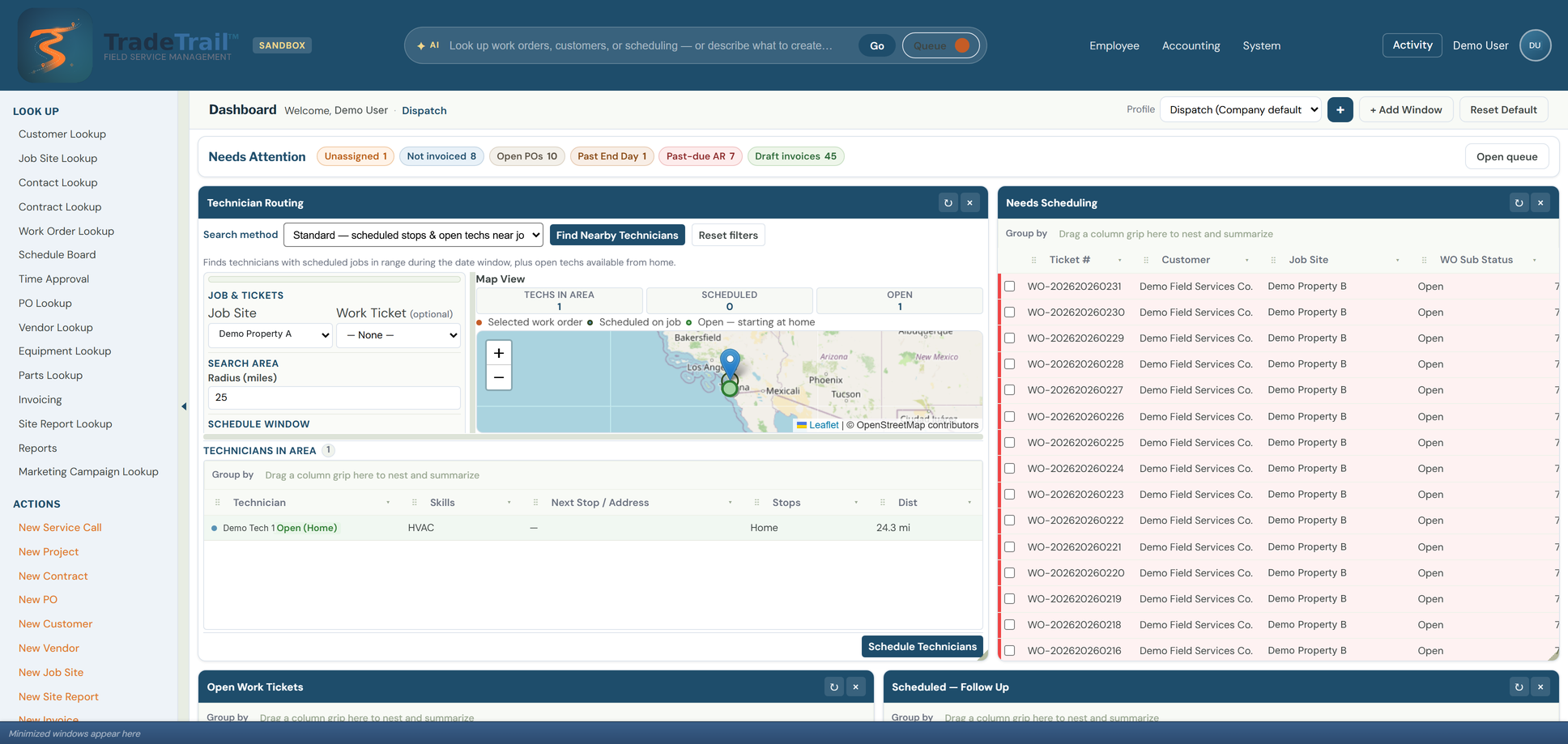
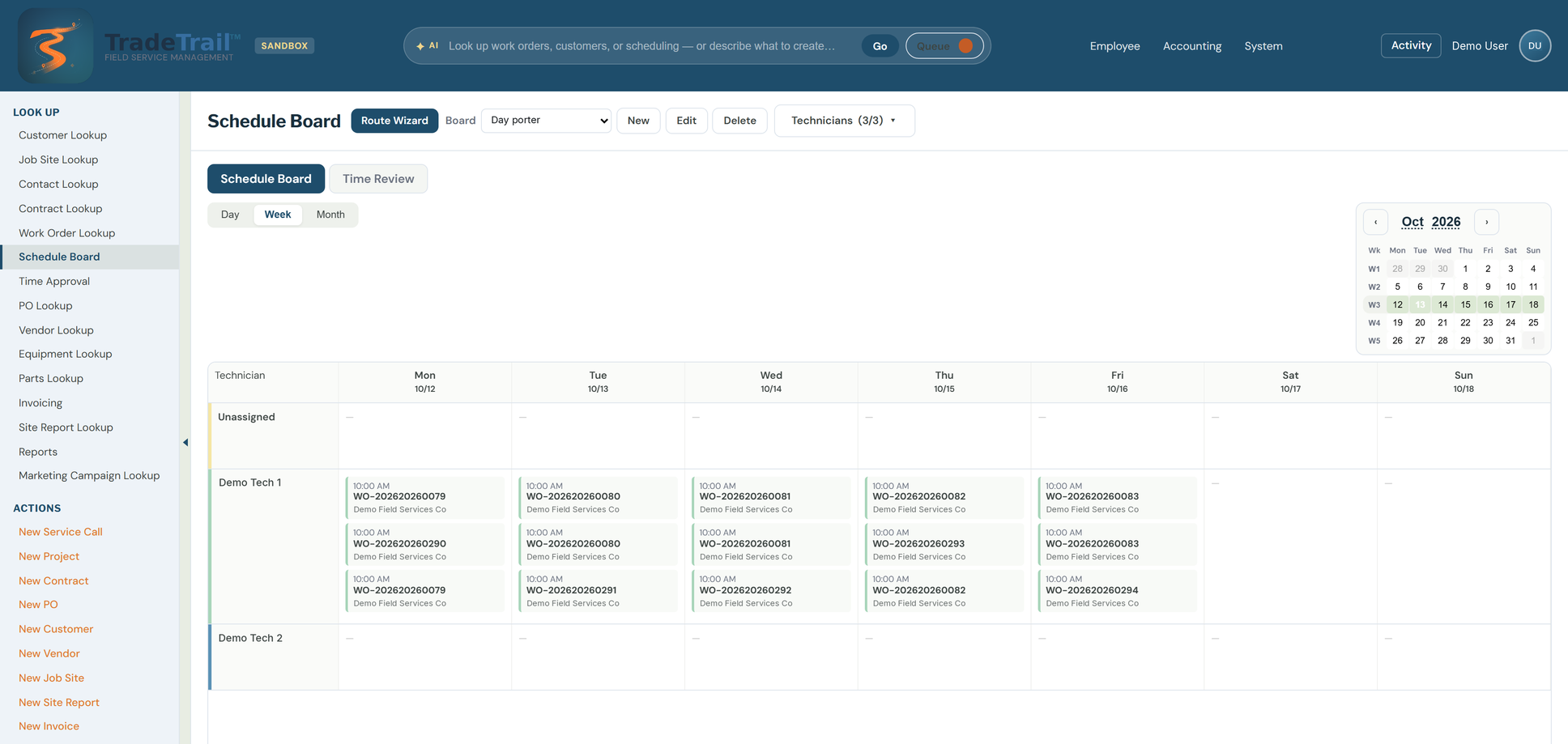
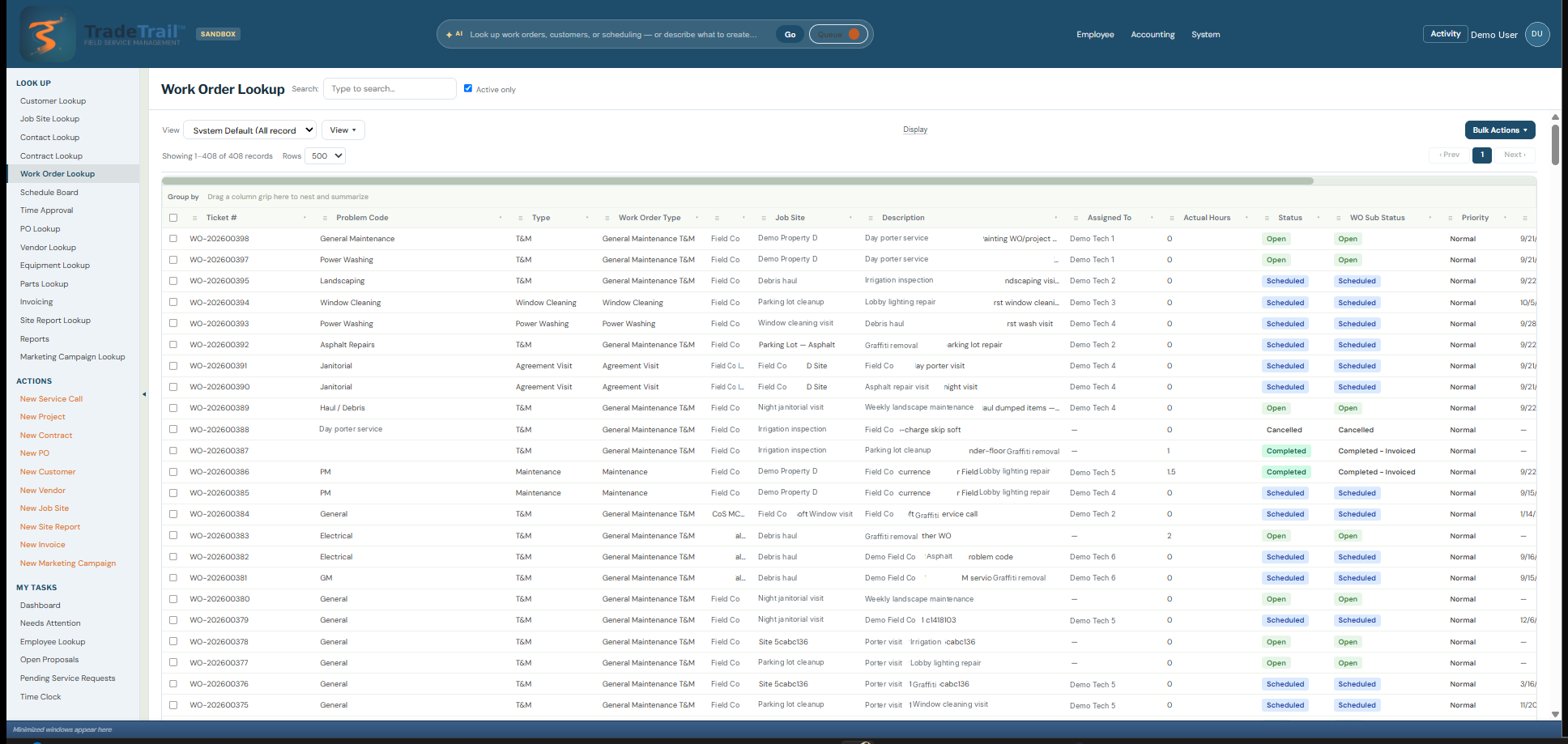
Dispatch dashboard, with technician routing and the jobs that still need a schedule

Dispatch dashboard · TradeTrail™ Field on the phone
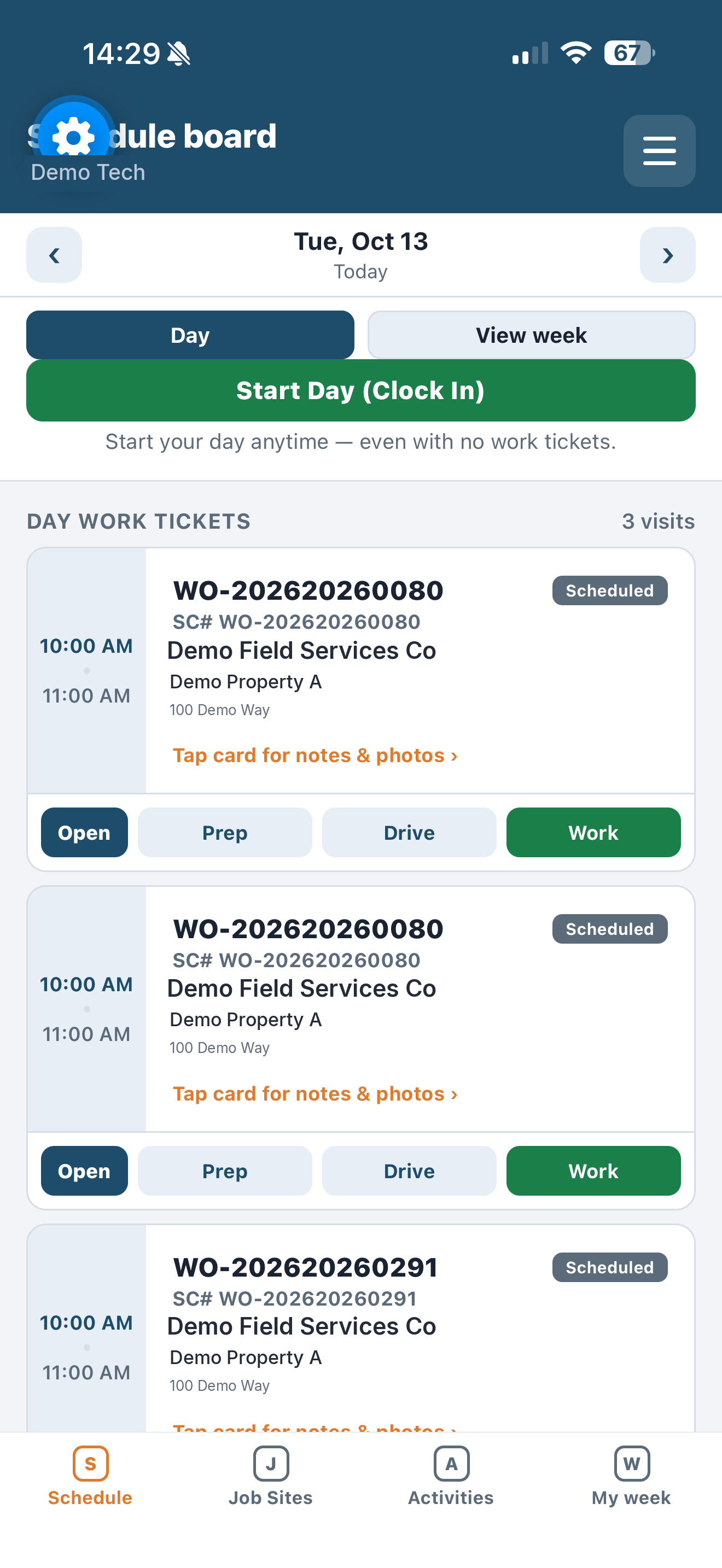
Field schedule board with clock-in

Built for

  • Janitorial

    Recurring sites, crews, and the desk that assigns the day.

  • Day Porter

    Shifts, sites, and check-ins for the day’s porters.

  • Landscape

    Routes, properties, and the week’s board.

  • Plumbing

    Service calls, the crew, and the desk that dispatches them.

  • General Contractors

    Jobs in the field and the office schedule behind them.

  • Handyman

    Smaller jobs, the day’s route, and the desk that books them.

Other field service trade? Ask if TradeTrail™ is a fit for you.

The desks

Each desk gets its own board

Dispatch, accounting, HR, and the account manager open from the same company. The day below is three bands: run it, watch it, close it.
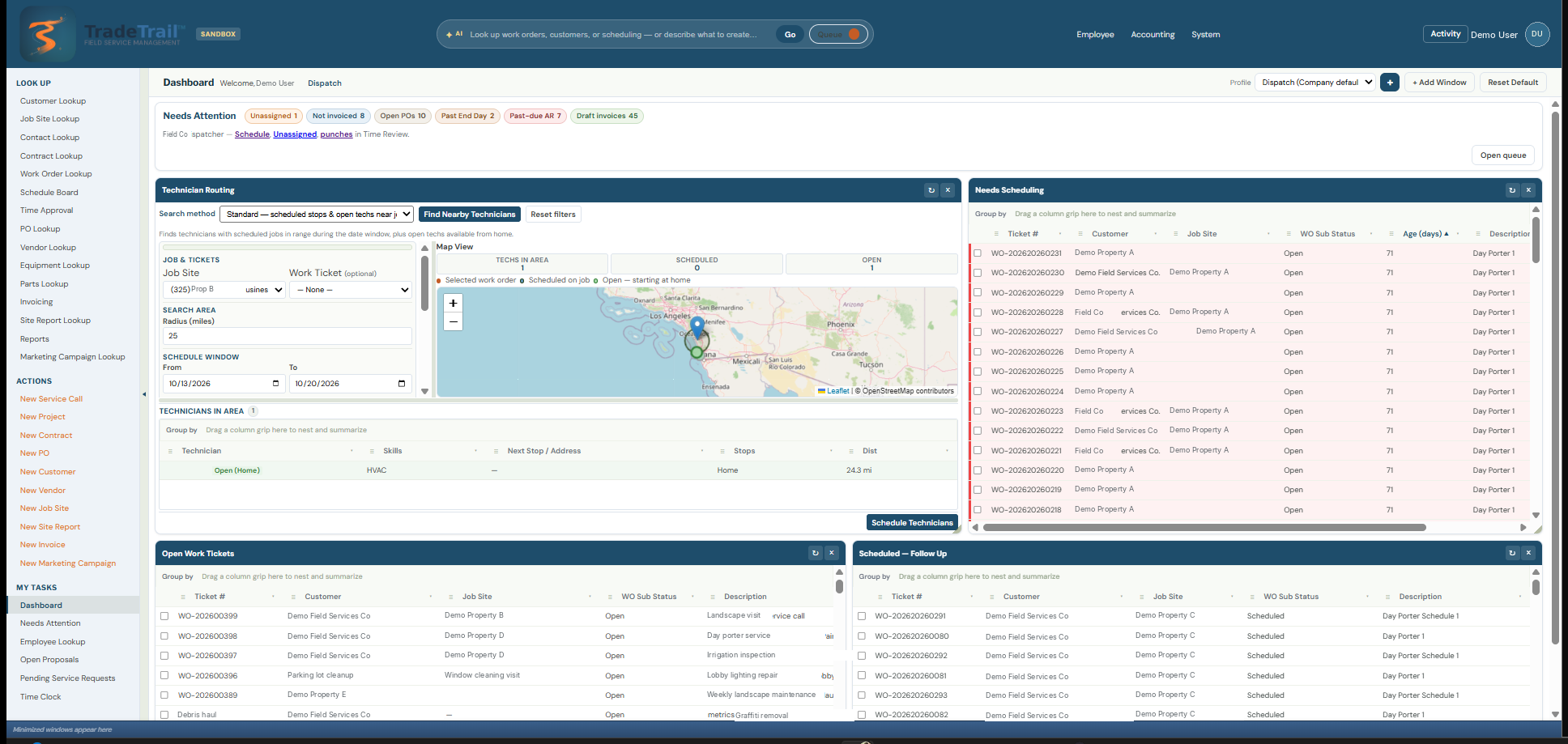
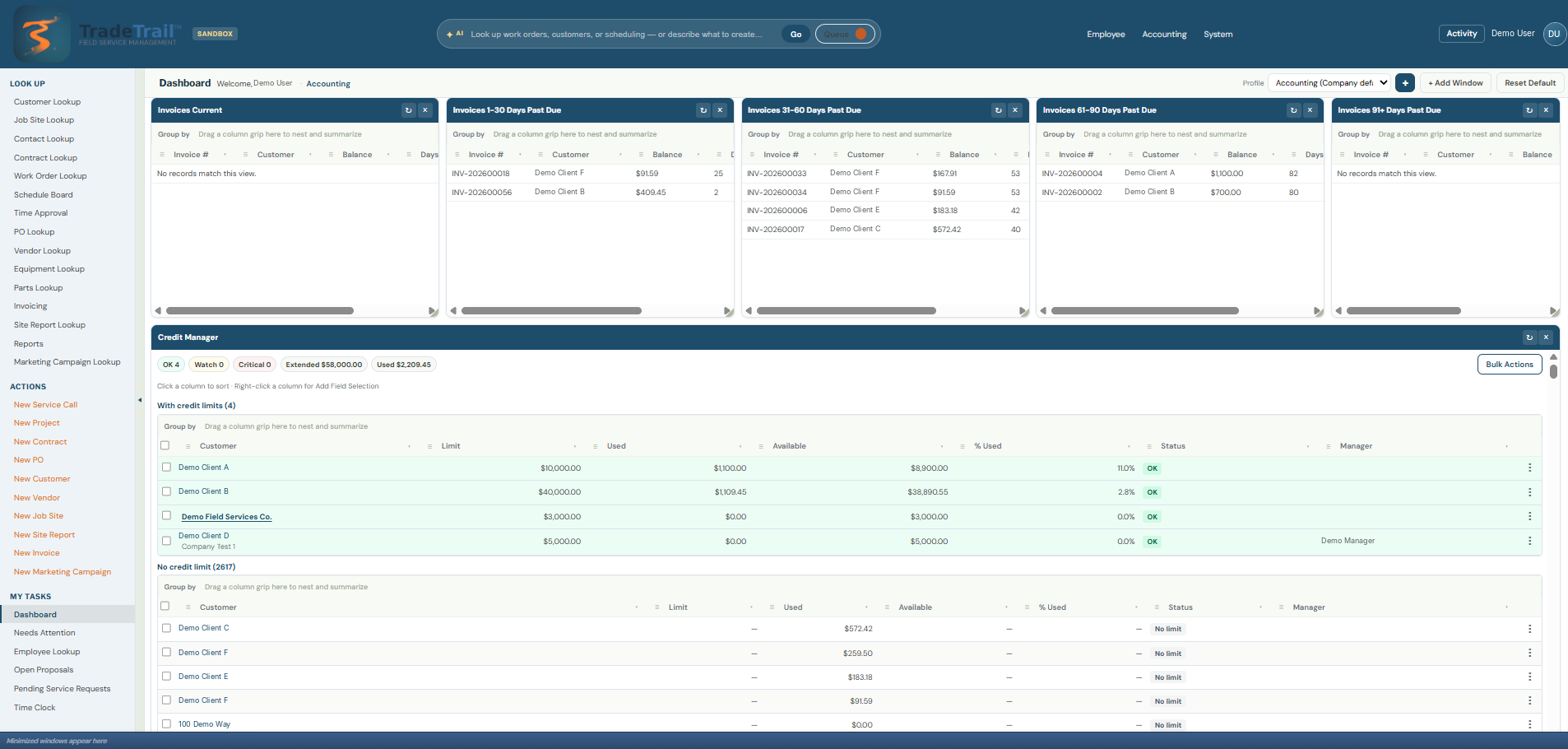
Dispatch dashboard

Run the day

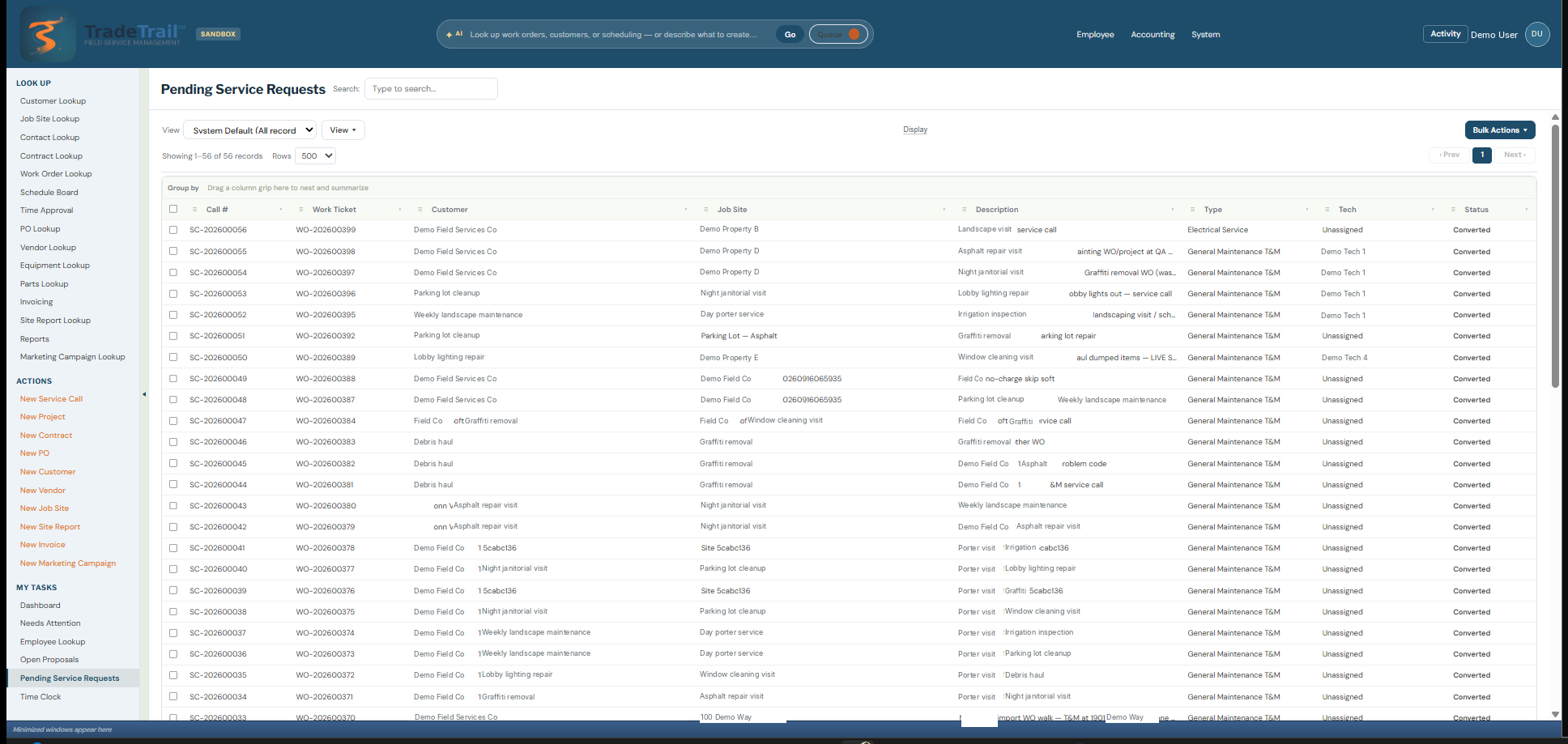
Schedule, tickets, and Field

The office board and TradeTrail™ Field show the same jobs. Open the week, the work orders, and the service calls. Estimates stay with the job until they become work.
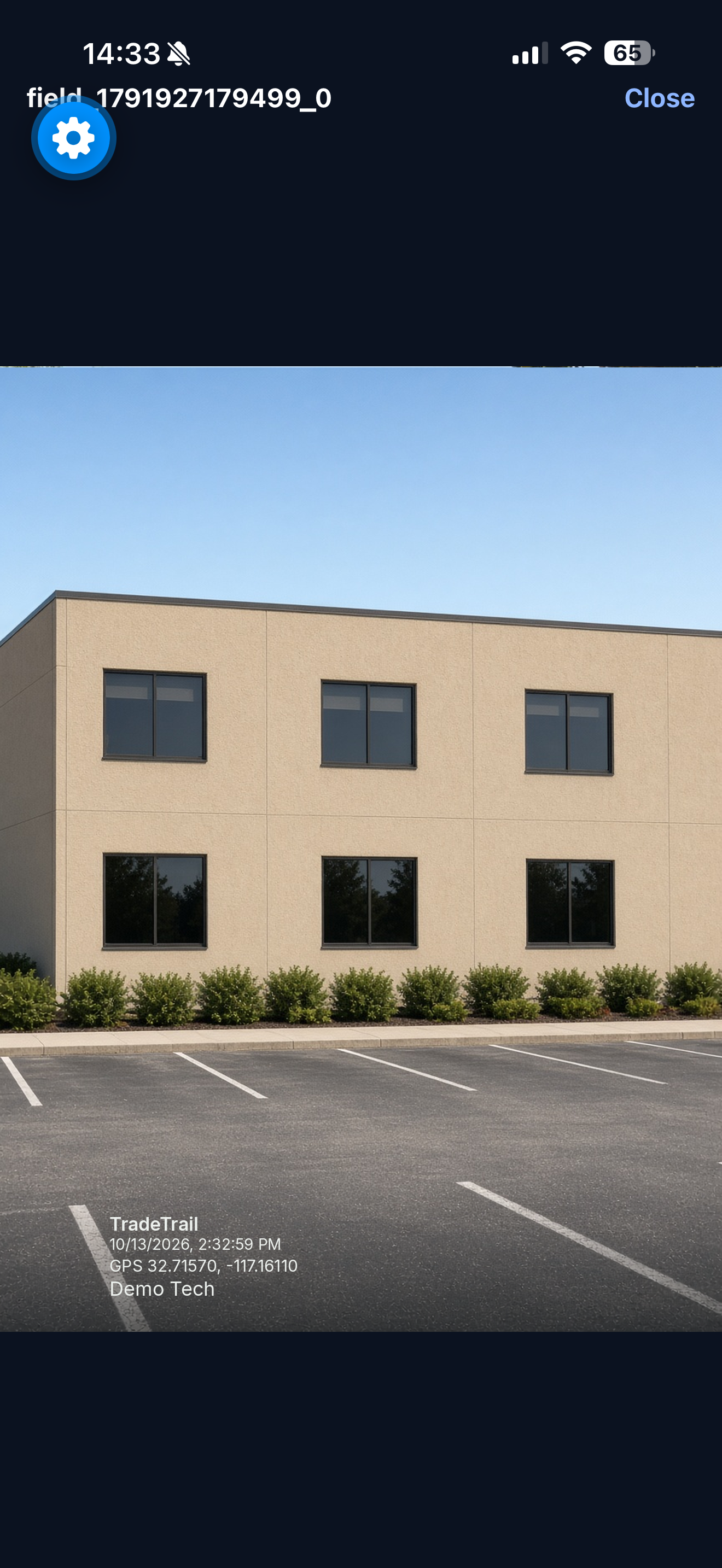
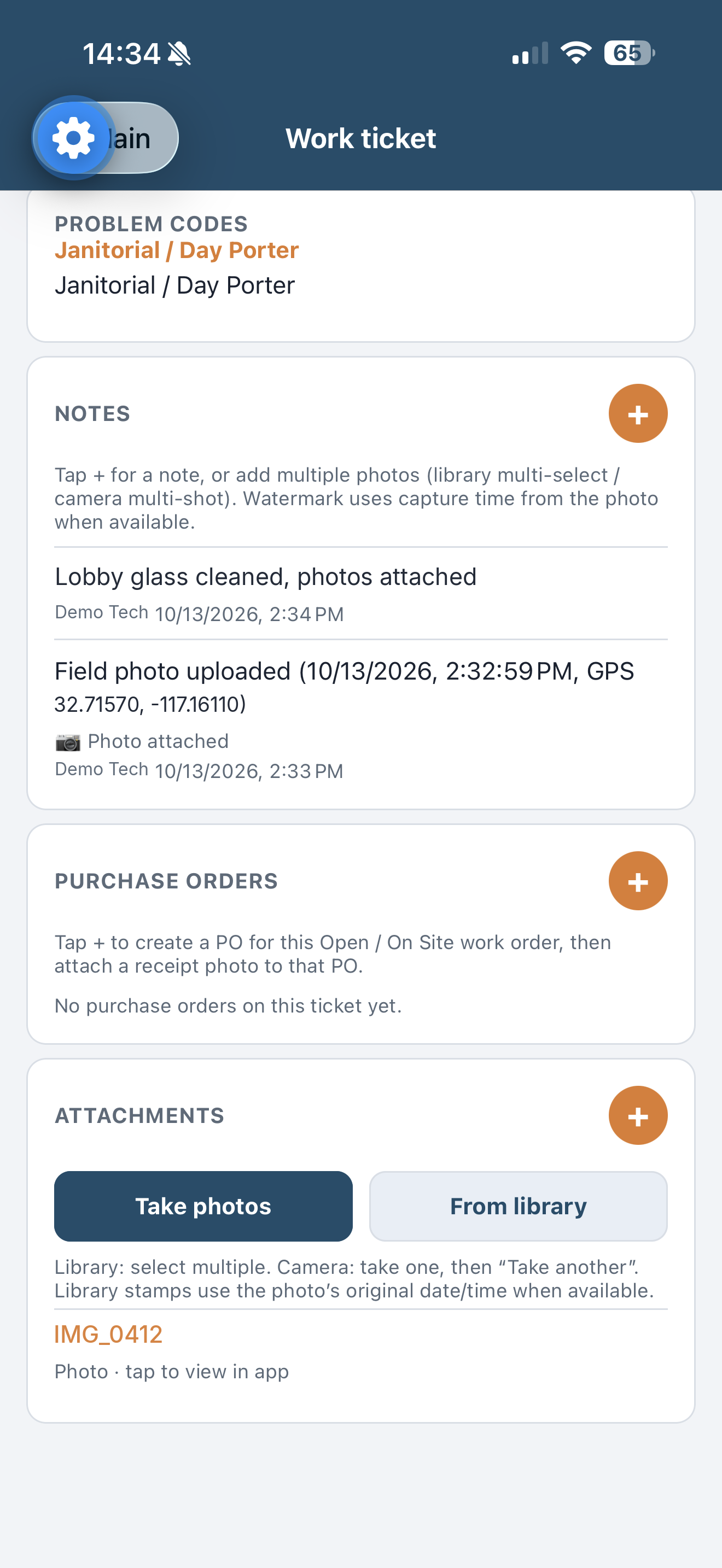
On the phone, photos keep the time they were taken and a GPS watermark. Notes, purchase orders, the day’s board, and the week’s hours stay on that work order.
Photos and notes

Field photo with a time and GPS watermark
Watermarked photo Capture time and GPS sit on the picture.
Work ticket note with a photo attached
Note with the photo The note, the tech, and the file stay on the ticket.
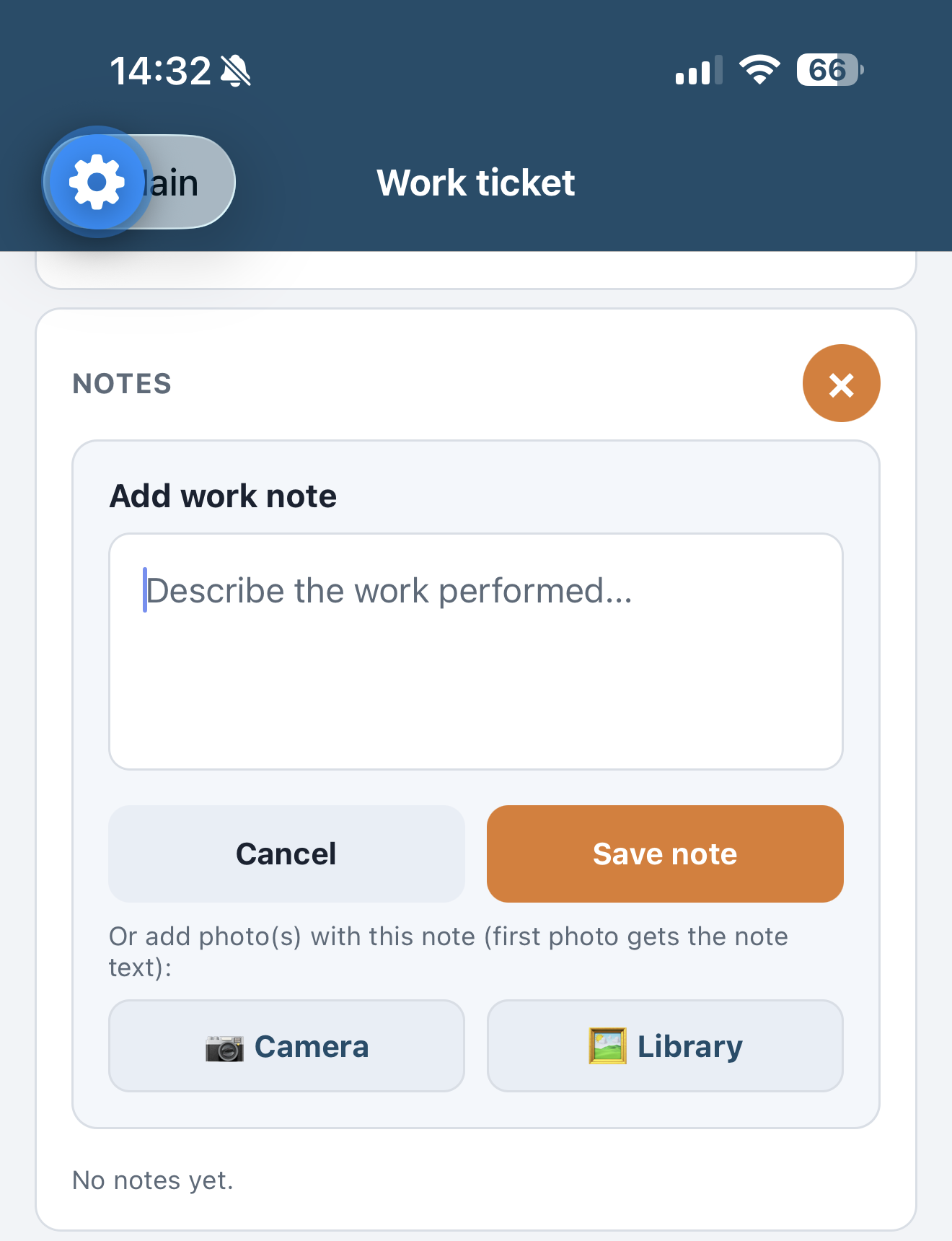
Add a work note with the camera or photo library
Add a note Write the work, then add a photo from the camera or the library.

Purchase orders on the work order

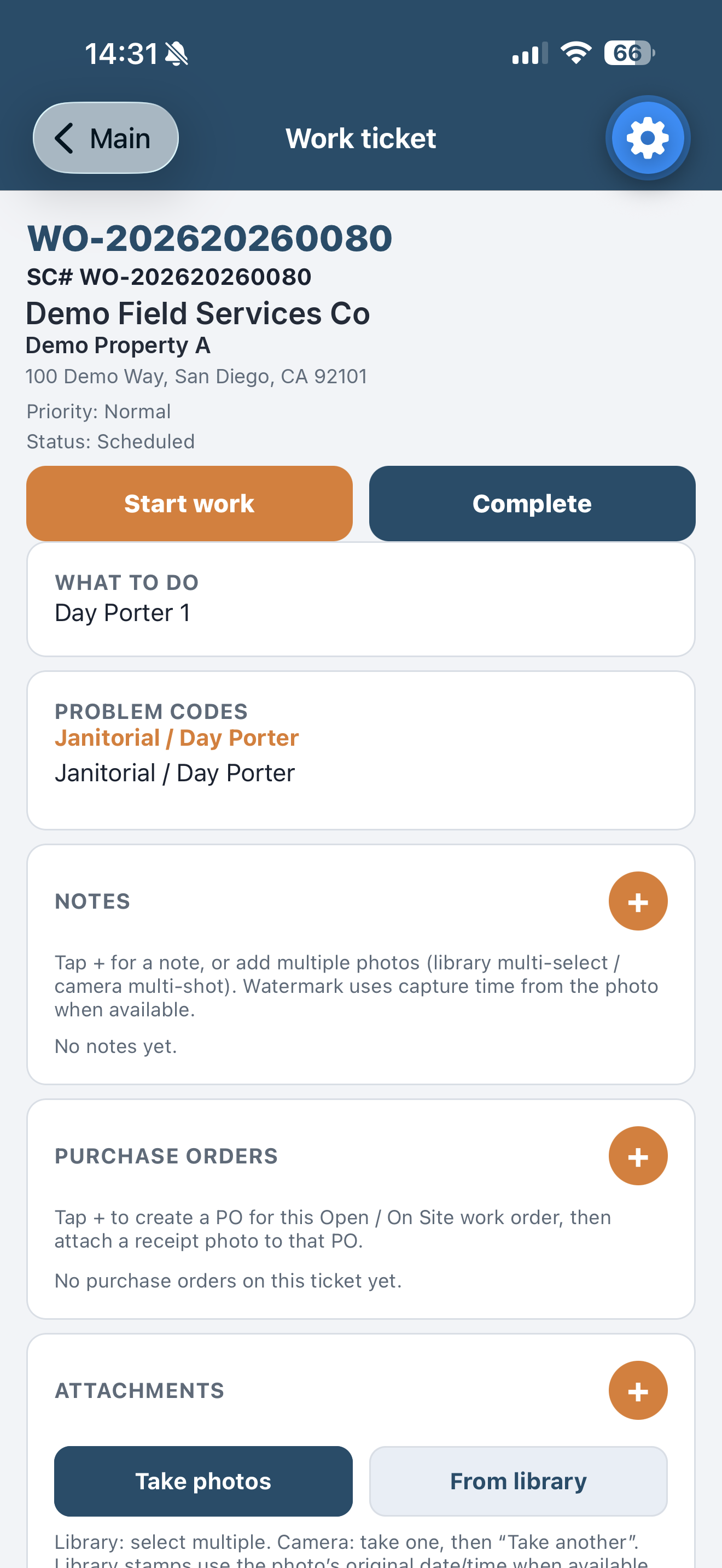
Work ticket with a place to add a purchase order
On the ticket A purchase order is opened from the work order, not from a separate app.
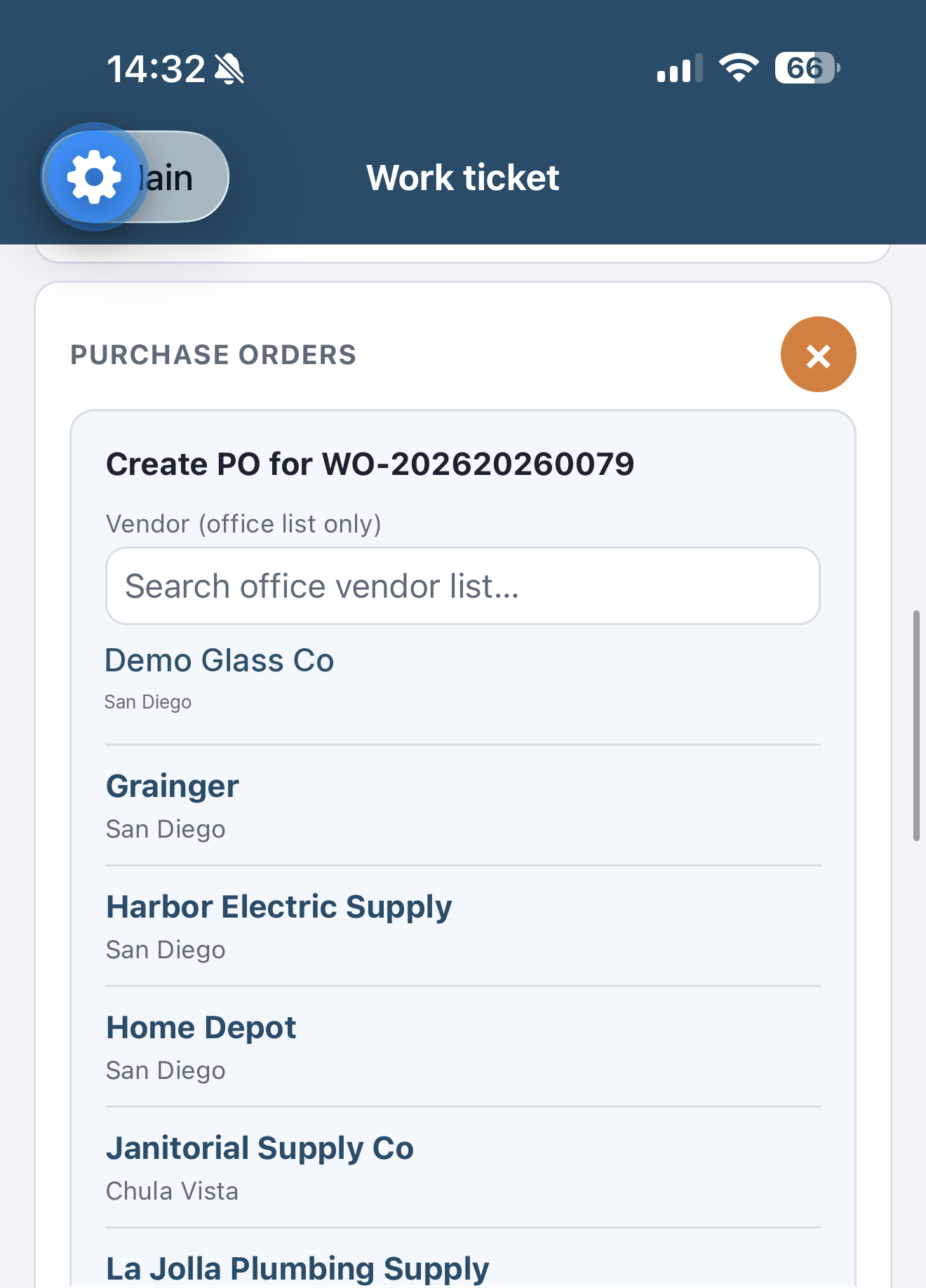
Vendor list for a field purchase order
Pick the vendor The office vendor list is on the phone. A receipt photo can be attached to that purchase order and read from the field. This page does not include a receipt-reader screen.

Schedule and clock-in

Field schedule board with clock-in
Today’s board Clock in, then open the visits on the day.

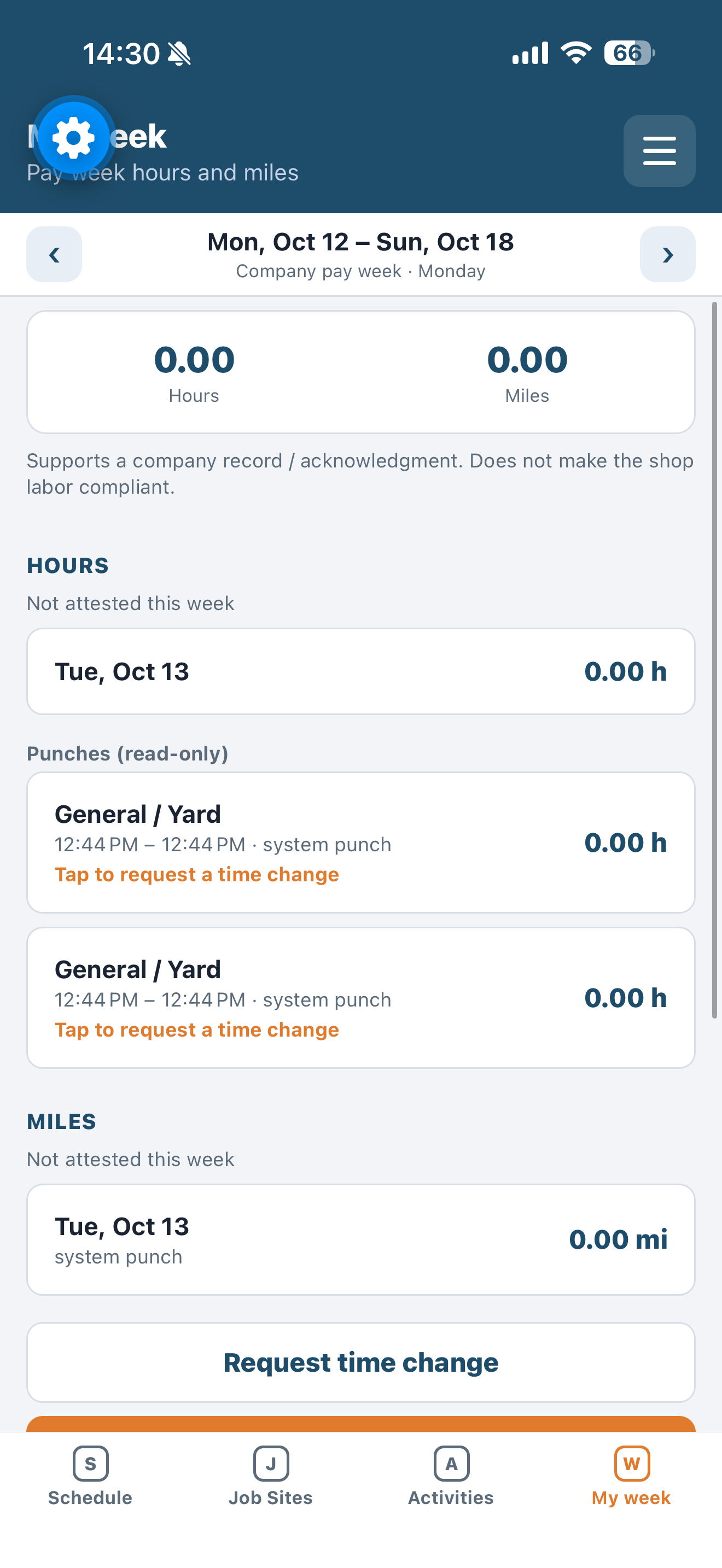
My week — hours and miles

My week hours and miles
Hours and miles The pay week shows what is attested and what is still open.
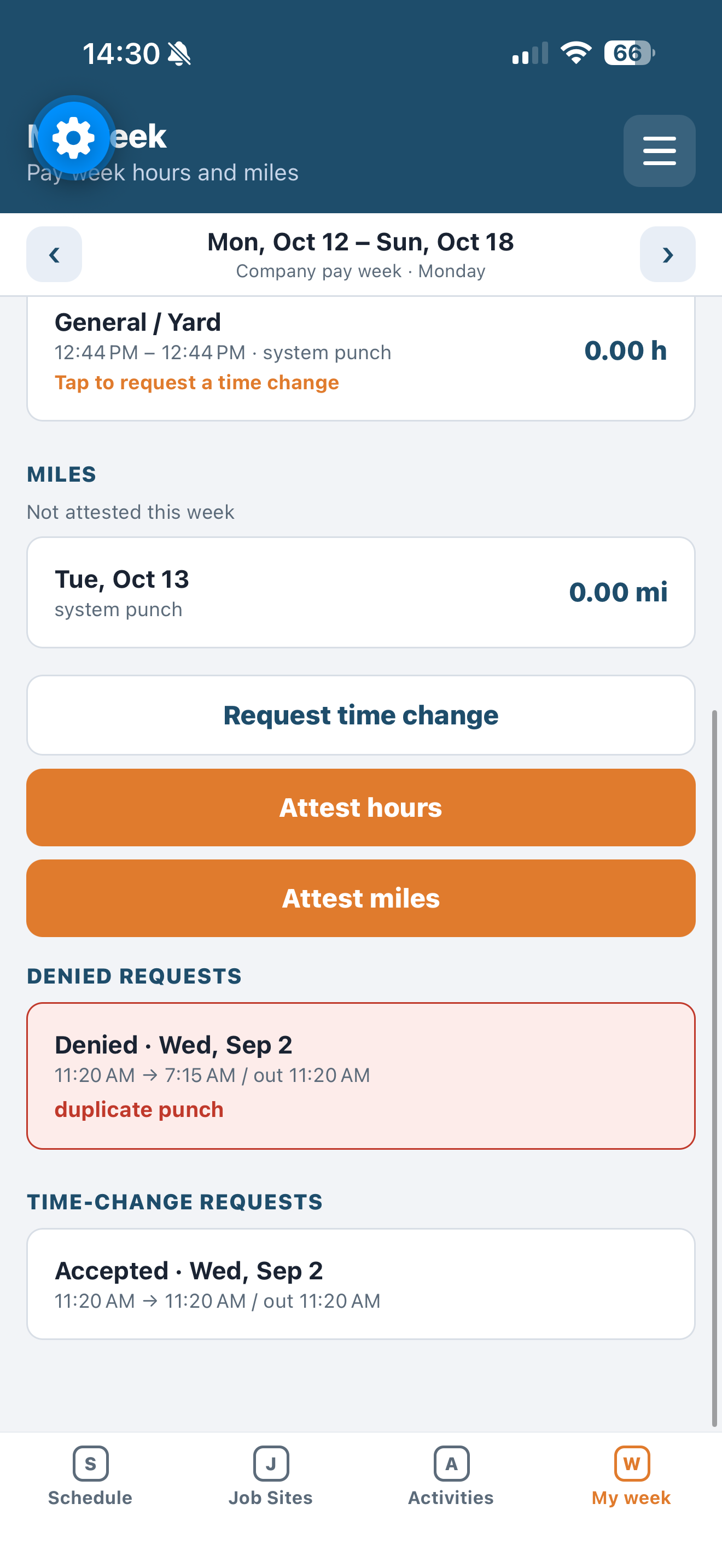
Time-change requests on My week
Attest or correct Request a time change when a punch needs a second look.

Watch the day

Rankings, reviews, dials, and alerts

Office controls on the same boards. Properties and people are ranked from the work already in TradeTrail™. The dial is the count. Time Review is where a person finishes the punch.
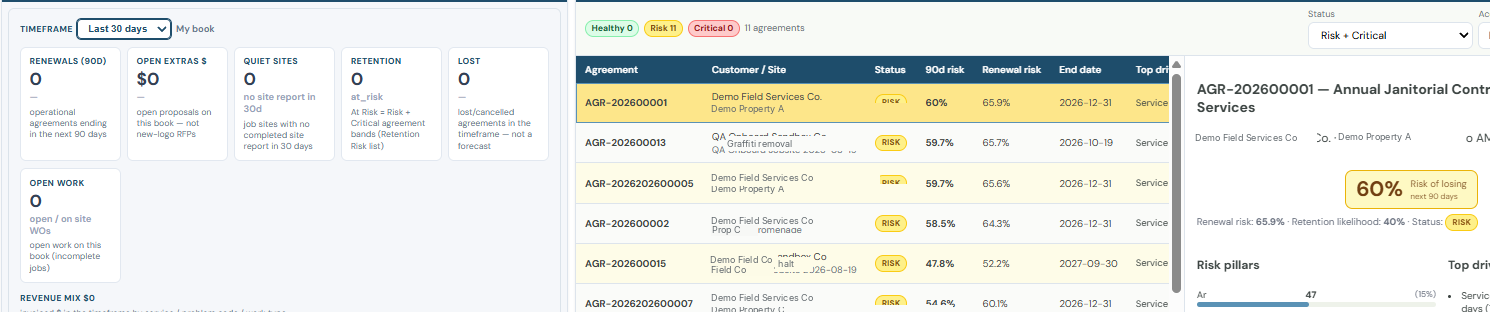
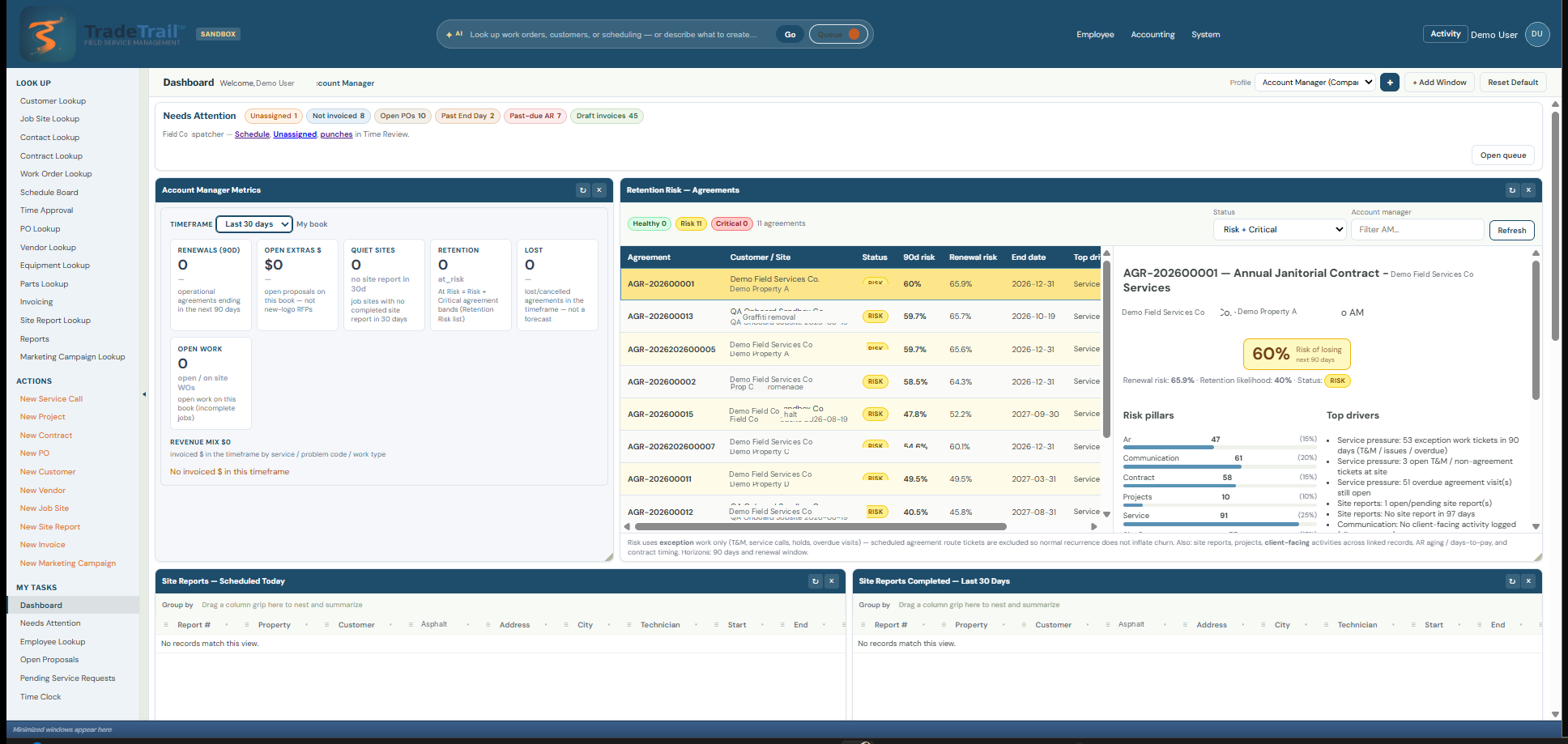
Account manager rankings: renewals, quiet sites, retention, and agreement risk
Property rankings · account manager. Renewals, quiet sites, and each agreement’s risk.
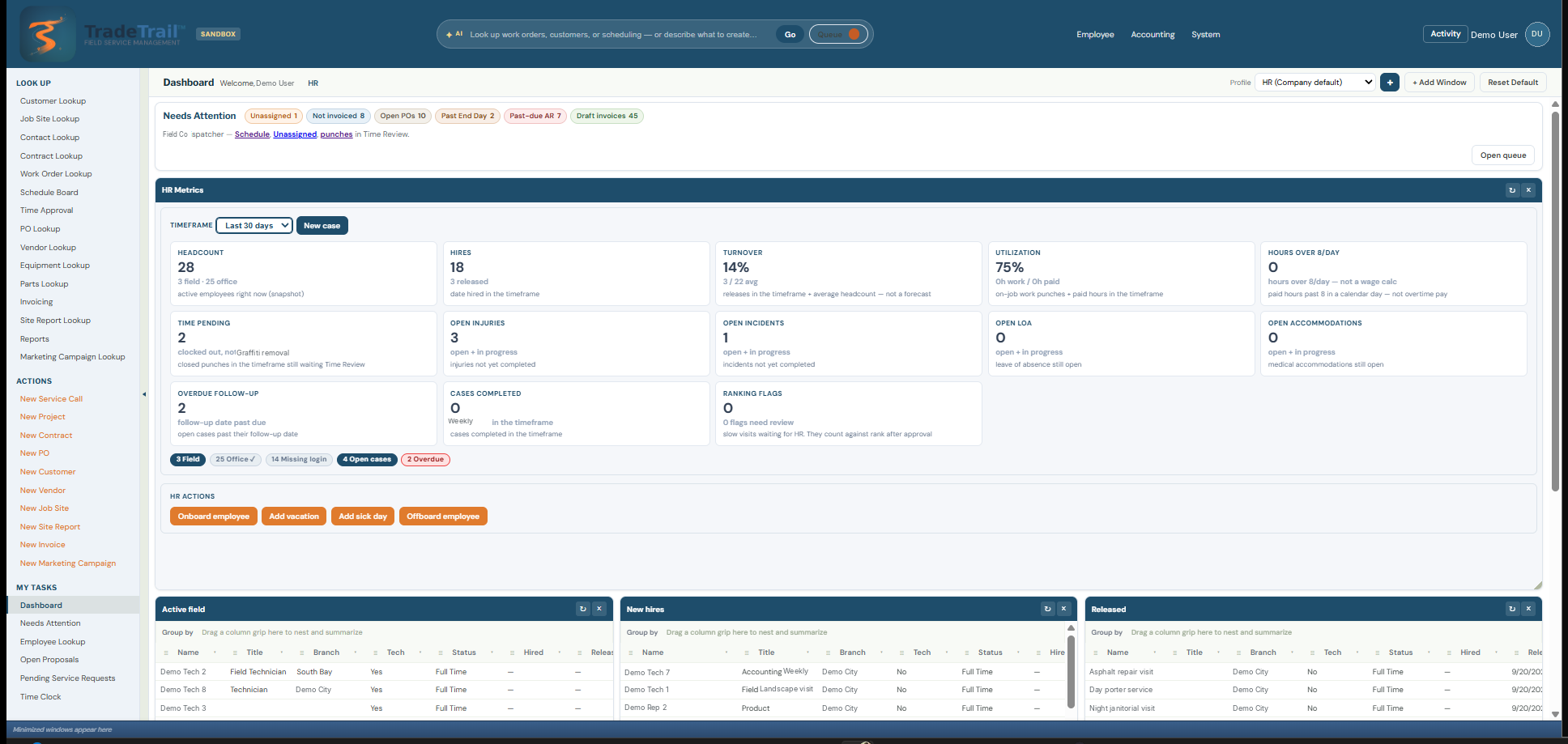
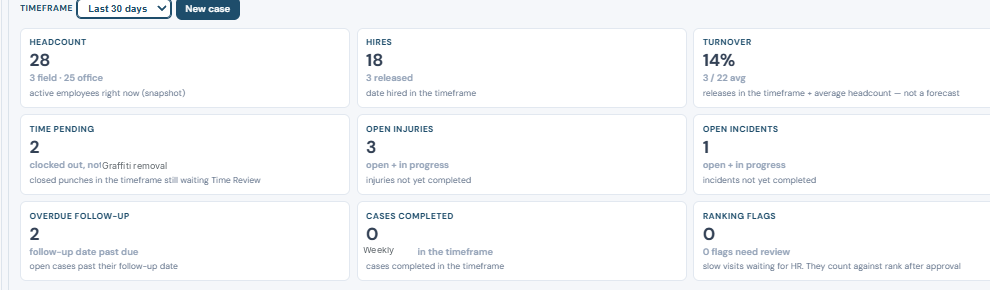
HR rankings: headcount, hires, turnover, open cases, and ranking flags
Employee rankings · HR. Headcount, turnover, and flags that count against rank.

Properties, by risk

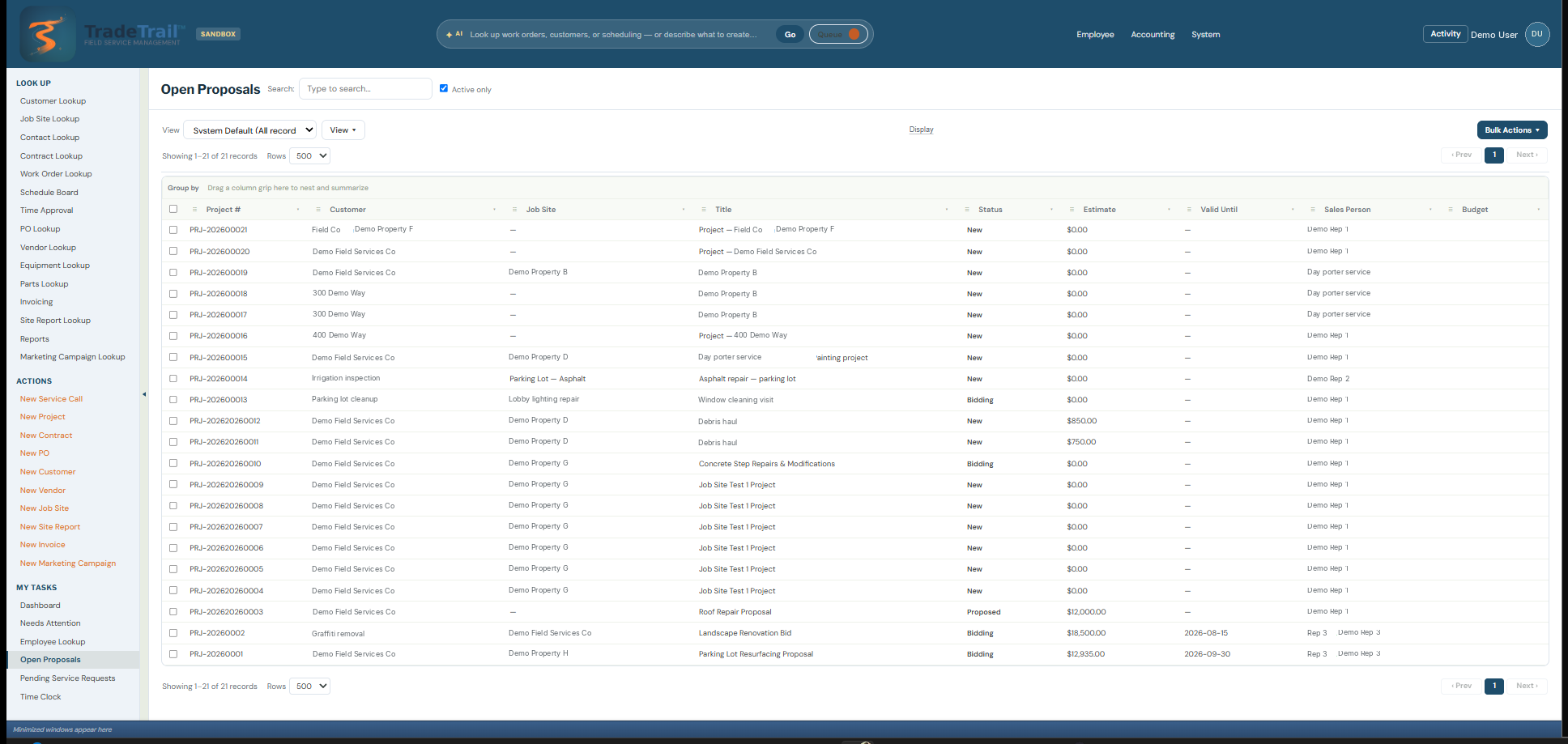
The account desk ranks agreements by 90-day risk and renewal risk. Lost and cancelled work, quiet sites, and open proposals land in the same view, so the property that needs a call is already at the top.

People, by the work around them

Headcount, hires, and turnover sit next to open injuries, incidents, and overdue follow-ups. Ranking flags mark slow visits that count against rank once they are approved.

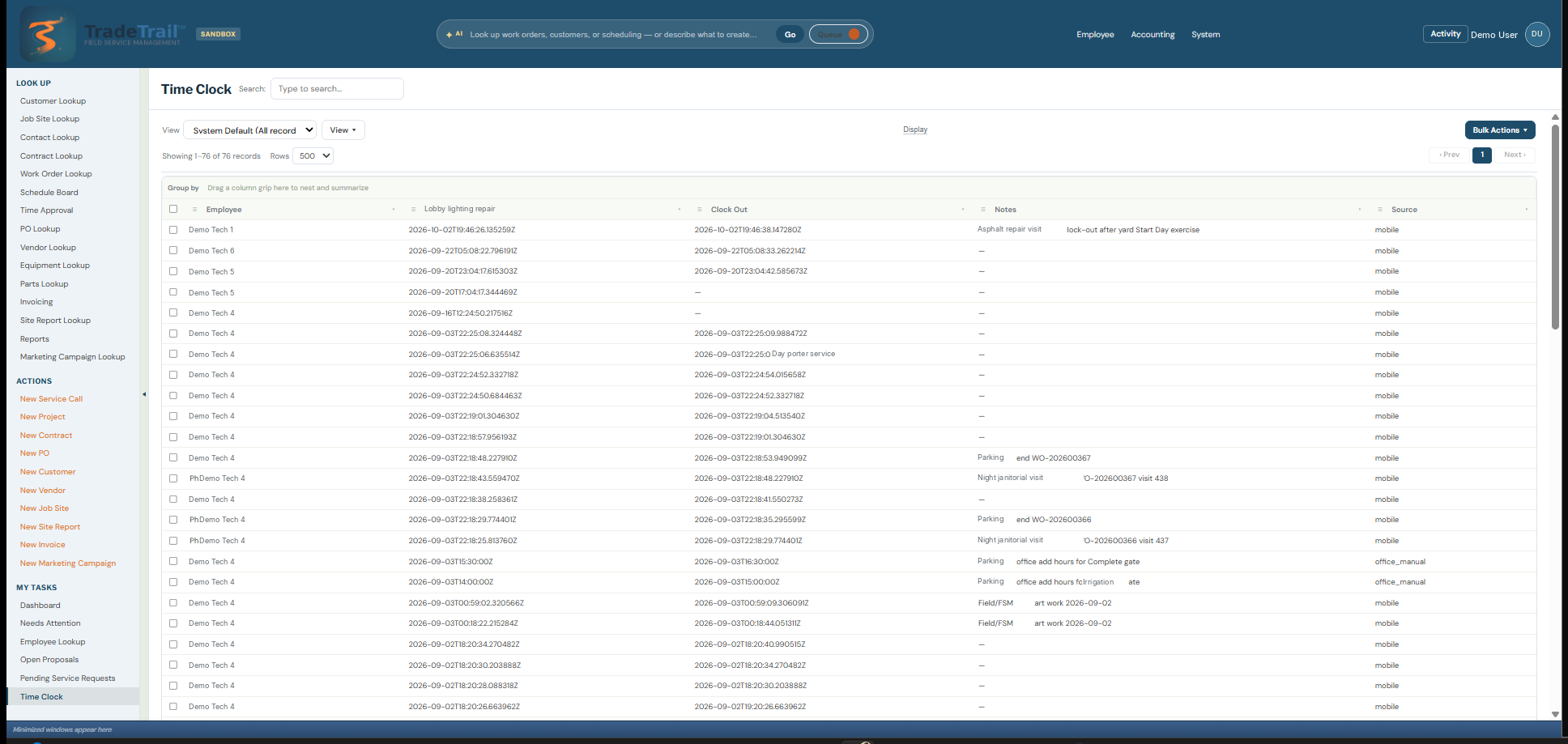
Time Review queue: punches waiting, open injuries, and open incidents
Time Review · HR board. Closed punches stay here until someone reviews them.

Reviews are a queue

Time Review holds punches that are clocked out and not yet accepted, plus injuries and incidents that are still open. The alert on the dial strip points at the same queue, so a reviewer starts from the number and finishes on the record.

  • Office and field punches land in one review step
  • Cases past their follow-up date stay on the HR board until they are completed
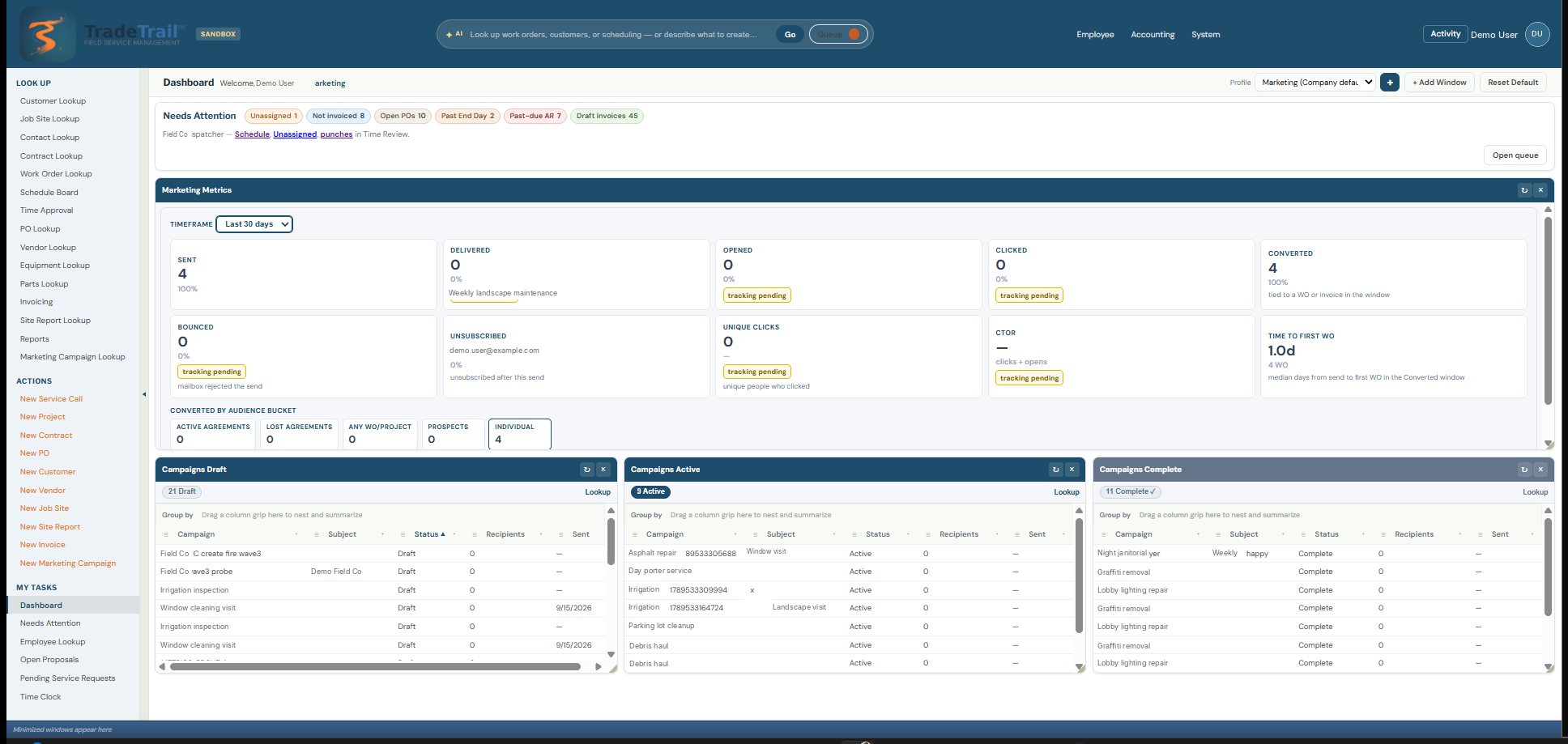
  • Marketing and the office board use the same Needs Attention strip when their own items are waiting
Six Needs Attention dials on the accounting dashboard
Accounting dials. The same strip sits on dispatch, HR, marketing, and the account manager.

Click a dial or an alert and act on it

Unassigned jobs, work that was not invoiced, open purchase orders, jobs past the end of the day, past-due balances, and draft invoices each have a count. Open one and that queue is the list in front of you.

  • The alert under the dials names the next step, including punches sitting in Time Review
  • Dispatch uses the same strip to get to unassigned work on the map
  • You stay on the board. The dial is the filter.

Close the day

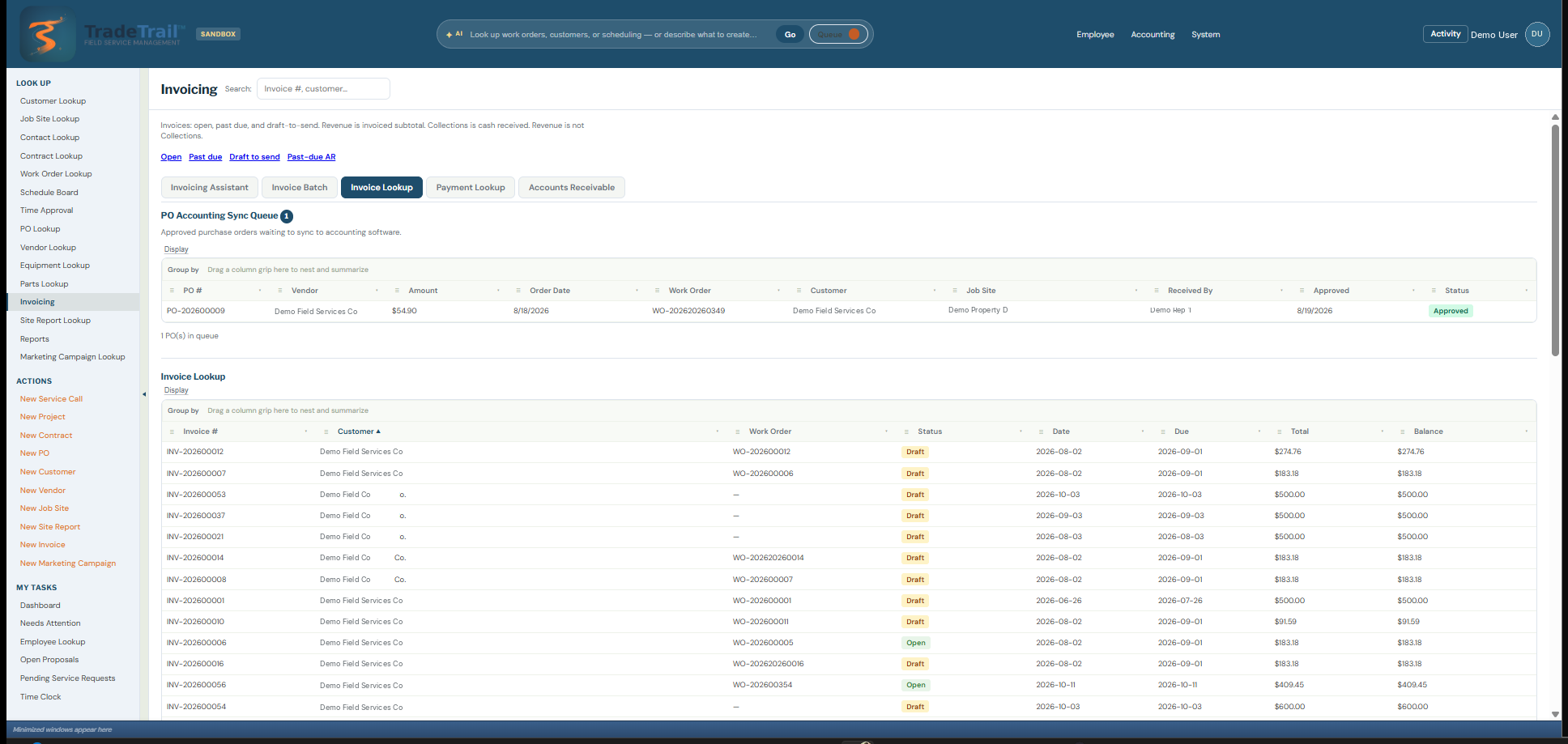
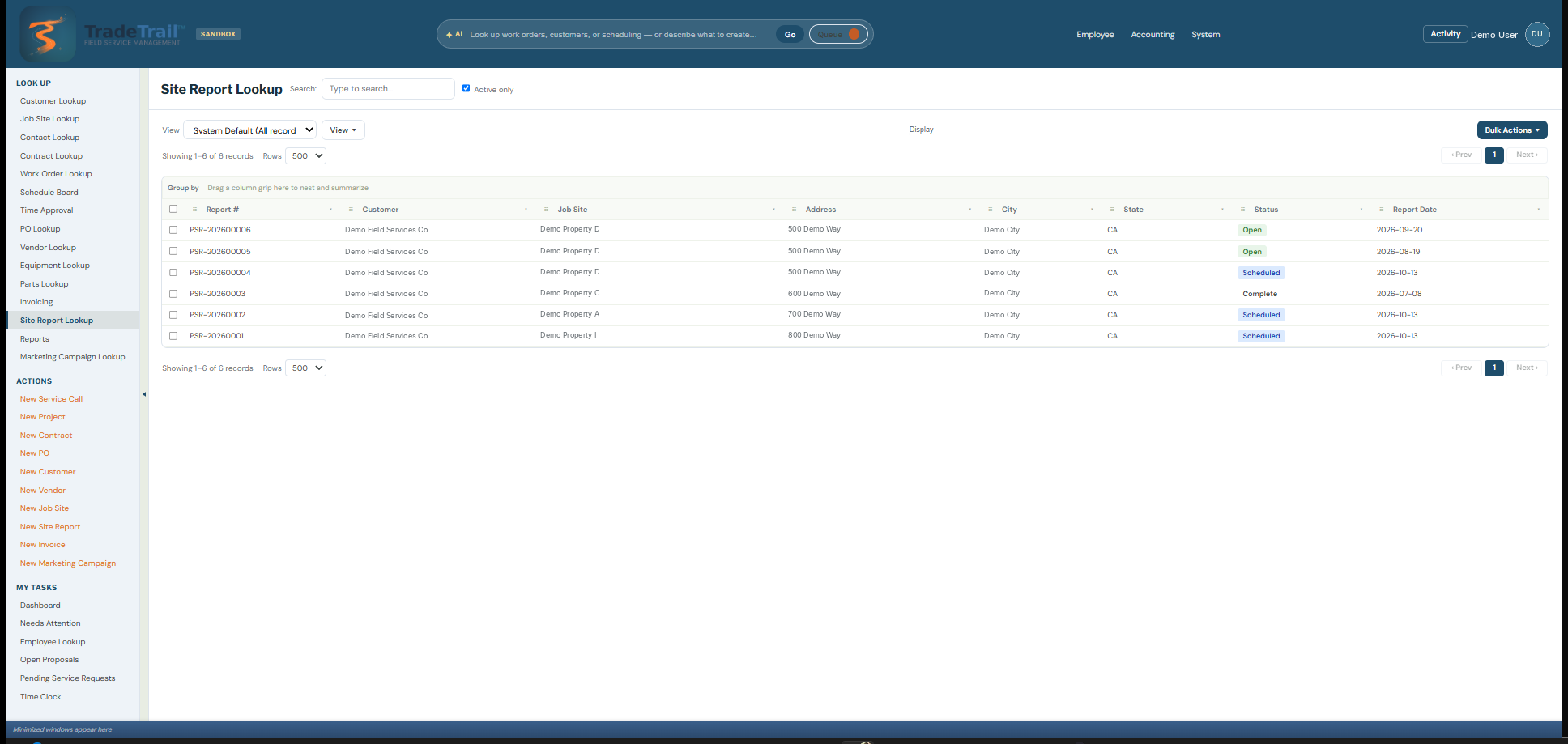
Invoices, site reports, and the clock

Billing, property reports, and time entries stay with the jobs the office and the field already ran.
What you can check

The product, the path, and a person

Open the screens above. The steps below are how onboarding works. The address reaches a person.

What ships

Desktop desks, TradeTrail™ Field, the schedule, work tickets, rankings, dials, invoices, and reports. Each image on this page is a screen from the product.

How onboarding works

  1. You request onboarding.
  2. A person writes back.
  3. We set up the office and Field with you.

How to reach us

[email protected]

Write there if you would rather send a message than use the form.

SI agents

Super intelligence agents that work with TradeTrail™

SI means super intelligence agents — assistants that sign in as users and chat in-program to help office and field workflows inside TradeTrail™.

TradeTrail™ works with Grok Bot, Dots, and other compatible SI agents — so your team can use assistants that fit how the desk and the field already run.

  • Grok Bot — SI agent that accesses TradeTrail™ as a user and chats in-program
  • Dots — SI agent that accesses TradeTrail™ as a user and chats in-program
  • Other compatible SI agents — high-level support for assistants that fit office and field work

SI agents show up beside the board — signed in, chatting inside the product, on the same jobs and tickets.

Request onboarding

A person writes back about setting up the office and TradeTrail™ Field.

[email protected]

A person writes back about onboarding. If your email app doesn’t open, write [email protected].

Thanks — a person will write back about onboarding.